
Operating the RCA RCR3273R Universal Remote Control
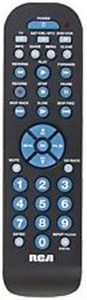
Tour of the Remote
In most cases, the keys on this remote perform the same functions as the keys on your original remotes once you've programmed this remote to operate your components. Many keys on this remote have other functions as well.
- Device keys (TV, SAT•CBL•DTC, DVD•VCR) put the remote in the right mode to control your device.
- GUIDE and MENU put the remote in menu/guide mode, which makes the CH/VOL keys serve as arrow keys; they also access the same features as the keys on your original remotes.
- CLEAR exits remote programming; it also performs the same functions as on your original remotes.
- CH and VOL keys have dual functions: they can act as navigation keys in menu systems as well as channel and volume controllers outside the menus.
- The INPUT and — (dash) key has three functions: (1) it toggles through all the video sources connected to your TV; (2) when the remote is in VCR mode, this button toggles between VCR and the TV input; (3) when you're entering digital channel numbers directly, this button lets you separate the main channel number from the sub-channel number.
IMPORTANT: Because this remote controls more than one device, you must first “tell” the remote which device you wish to operate. That means, if you wish to operate your TV, you must first press the TV key to put the remote in the TV Mode. The remote stays in that device mode until you press a different device key. For example, if your remote is in TV Mode and you want to operate the DVD player, you must press the DVD•VCR key to change device modes.
Accessing Device Menus and Guides
Many devices use on-screen menus and guides to help you navigate through all their features and programming. While this remote may not access every menu or guide system of every device model, it does offer some menu and guide functionality.
To use a device’s on-screen menu or guide system, you first have to put the remote in Menu or Guide Mode.
- Make sure your devices are turned on and your TV is set to the correct device input (use the INPUT key to toggle through inputs when in TV Mode.)
- Press the device key whose menu you want to access.
- To access menus, press the MENU key. To access guides, press the GUIDE key. The indicator starts blinking, indicating you are in Menu or Guide Mode.
- Use the VOL+/- and CH+/- keys to navigate through the on-screen menu system or guide. To select the highlighted item, press the OK key.
TIP: If the remote doesn't respond, check to see that the indicator is still blinking. The indicator times out after 20 seconds. If this happens, just press the MENU or GUIDE key again, and then retry your selection.
Exiting Menu/Guide Mode: The remote automatically times out of Menu or Guide Mode after 20 seconds of inactivity (no keys being pressed). At that time, the remote clears the displayed menu from the TV. If you want to exit the Menu Mode yourself, press the corresponding device key on the remote (TV, SAT•CBL•DTC, DVD•VCR). The indicator turns off.
Reassigning the DVD•VCR Key to Control a VCR
The DVD•VCR key defaults to control a DVD player. If you want the DVD•VCR key to control a VCR, you must reassign it.
- Press and hold the DVD•VCR key. The indicator turns on. Keep holding down the DVD•VCR key.
- While holding down the DVD•VCR key, press and release the number 2 key on the keypad. The indicator turns off.
- Release the DVD•VCR key. The indicator blinks four times and then turns off. The DVD•VCR key is now set to control a VCR.
- Follow the directions in the auto, brand, direct entry, or manual code search to program the DVD•VCR key for your VCR.
Notes:
- If you cannot locate your owners manual you can view the codes online and download a manual below however if the code is not listed for your specific component we will NOT be able to provide additional codes
- If your remote is over four years old, it might not be able to operate some newer components, or it may be able to operate some functions but not others.
ADDITIONAL RCA REMOTE CONTROL REFERENCES
The rcaaudiovideo.com site provides step by step videos, an online code finder as well as additional PDFs of Owner-User manuals and code lists. Please see the information below for the latest information.
RCA Online Code Finder
To access the RCA Online Remote Control Code Finder to search for a component code that is compatible with your RCA remote, Click Here.
If you don't see your RCA remote listed by MODEL NUMBER, please send us Feedback saying Code Not Found (just click on How well did this answer your question? below to add feedback) and we will get the codes posted as soon as possible.
User Manual Search
If you don't see your remote control model listed on this support site please send us Feedback saying Manual Not Found (just click on How well did this answer your question? below to add feedback) and we will get the manual posted as soon as possible.
To access the RCA Site for user manuals not found in the support FAQ's Click Here and enter your remote control by MODEL NUMBER and check Manual in the search box at the top left of the page.
Comments
0 comments
Article is closed for comments.