
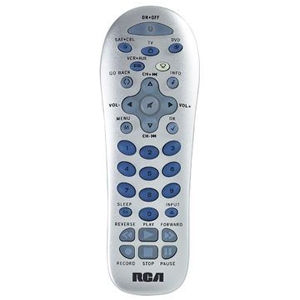
|
BUTTON |
FUNCTION |
| Menu-Prog | Used to open the menu system. |
| Move (+), Move (-), and Move Down | Used to navigate the menu system. |
| Enter | Used to select menu options. |
On Screen Menus
Accessing and Selecting Menu Items
Today’s advanced components use on-screen menus to help you navigate through all their features and functions. While this remote cannot access every menu system of every component model, it does offer some menu functionality.
To use a component’s on-screen menu system, you first have to put the remote in Menu Mode.
- Make sure your components are turned on and your TV is set to the component’s input mode (Use the INPUT key to toggle through inputs when in TV Mode.)
- Press the component key whose menu you want to access.
- Press the MENU key. The illuminated ON·OFF key blinks, indicating you are in the Menu Mode.
- Use the VOL+/- and/or CH+/- keys to navigate through the on-screen menu system.
- To make a selection from the on-screen menu, press the MENU or OK key to select the highlighted item.
TIP: If the remote doesn't respond, check to see that the illuminated ON·OFF key is still blinking. Remember: it times out after 20 seconds. If this happens, just press the MENU key again, and then retry your selection.
Exiting a Menu Mode
The remote automatically times out of Menu Mode after 20 seconds of inactivity (no keys being pressed). At that time, the remote clears the displayed menu from the TV. If you want to exit the Menu Mode yourself, press the corresponding component key on the remote (TV, DVD, VCR·AUX, SAT·CBL). The illuminated ON·OFF key turns off.
$rcaremote
Comments
0 comments
Article is closed for comments.